Evergreen
Troubleshooting Starlink Red Light on Router: What it Means
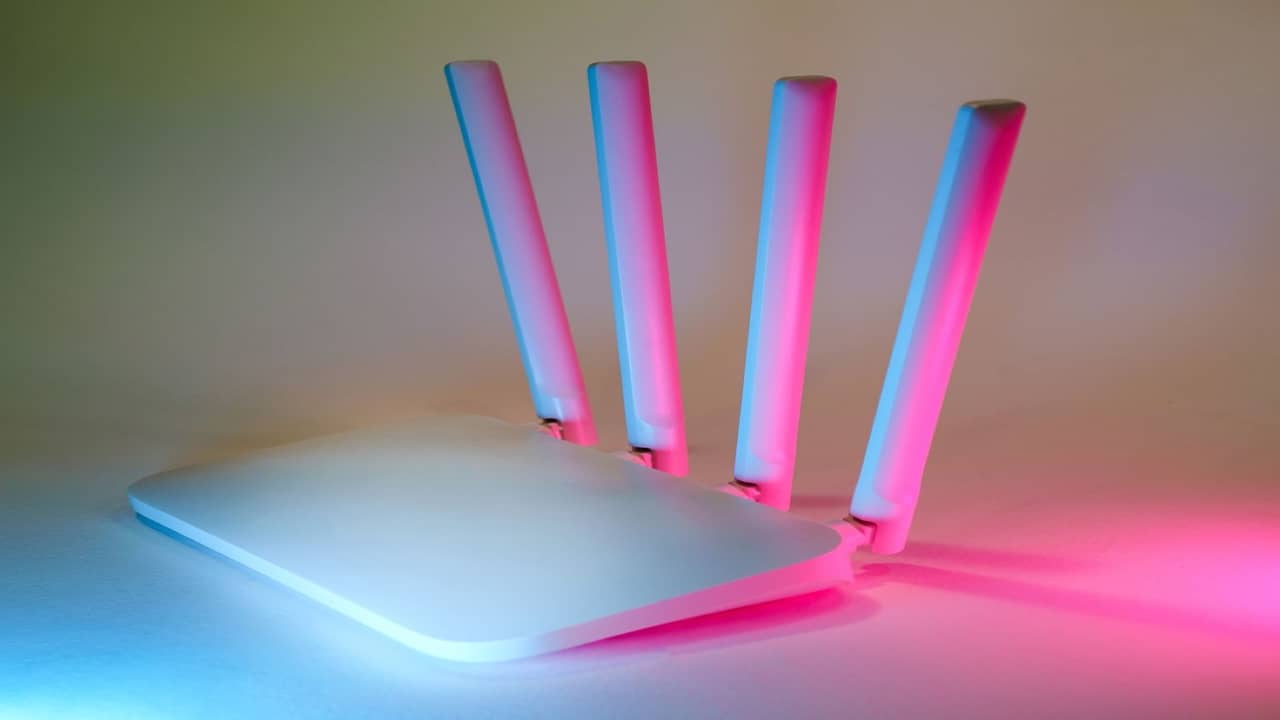
A red light on the Starlink router scares households straight into WhatsApp support threads. Usually it means the router isn't getting a healthy data link from the dish — not that Nigeria lost satellite coverage. Power events from NEPA-to-generator changeover, loose cables after roof maintenance, or a dish still rebooting after firmware update are the common compound causes — literal and figurative.
Work through power and physical layers before factory reset. Resets fix app glitches; they don't fix chewed cables or a dish unplugged by the electrician.
What router LED colours generally indicate
Exact patterns vary slightly by router generation and firmware — check the Starlink support pages for your hardware revision. Broadly: white or blue often means booting or connecting; red signals fault or no dish link; no light means power issue. The app duplicates status with clearer text — use both.
Step 1 — Power and surge events
Confirm the router power brick is firmly seated — generators and inverter transfers vibrate plugs loose. If lightning season recently hit, inspect surge protectors; a dead protector sometimes means equipment upstream is fine but router took a hit.
Power-cycle in order: unplug router and dish power for sixty seconds, plug dish first, wait two minutes for motors to finish initial move, then router. Nigerian sites reboot everything at once during changeover — sequential power-up reduces race conditions.
Step 2 — Cable and connections
Trace the integrated cable from dish to router. Look for sharp bends, pinch points in door frames, or damage from recent roof work. Reseat connectors at router and dish base without forcing pins. If estate maintenance stepped on conduit joints, glands crack silently.
Step 3 — Dish obstruction and sky view
App may show searching or obstruction even when router LED is red. New construction, fallen branches after harmattan, or a dish knocked off alignment blocks link. Run obstruction scan if the app connects intermittently via phone on mobile data tethered to configure.
Step 4 — App and account status
Verify subscription active, no payment failure, service address correct. Account issues sometimes present as offline despite green dish LEDs on older kits — cross-check billing in app.
Step 5 — Bypass and third-party routers
If you're in bypass mode with a third-party firewall, confirm the Starlink router still powers the dish link. Red on Starlink router with working internet via Ethernet might still matter for dish diagnostics — don't power it off permanently.
When red persists
Document LED pattern, app error codes, photos of cable route. Contact Starlink support through app with kit ID. If physical damage suspected — rodent chew, lightning — order replacement cable or hardware and fix routing before remount.
DataGram clients get handover photos that speed troubleshooting — we know your gland locations without guessing.
Preventing repeat red lights
UPS on router and dish for flicker outages. Proper conduit and strain relief. Torque-checked mounts so maintenance doesn't tug cable. Label breaker panels so cleaners don't kill 'that outdoor socket.'
Differentiating router red from dish issues
Some kits expose separate status for dish and router. Router red with warm dish motors may be LAN-side; dish unresponsive with cold motors may be power or cable at the mast base. App diagnostics increasingly spell this out — update the app before guessing.
After estate painters tape over roof cable 'temporarily,' red lights follow. Maintenance teams need written cable maps — professional handover supplies photos at gland and tray points.
Outage vs hardware fault
Rare national or ground-station issues show widespread social media reports — check before roof climbs. Localised red lights with neighbours online point to your site. Starlink status pages and community forums help triage; your installer still resolves cable and power faster than Twitter.
Tools to keep on hand
Known-good patch cable for Ethernet adapter tests. Phone with app logged in on mobile data so you can manage dish when LAN is down. Torque wrench if you maintain your own mount — re-check after estate maintenance crews 'just stepped on the roof for AC.'
Escalation timeline
Hour one: power-cycle and cable check. Hour two: app diagnostics and account billing. Day one: support ticket with photos. Day three: installer visit if physical plant suspected. Dragging a chewed cable for two weeks hoping red clears wastes subscription naira — especially on business plans.
Document each step for landlord disputes — 'internet was down because dish unplugged during painting' is a common move-out argument in furnished rentals.
NEPA and generator patterns
Repeated red lights only during changeover point to power sequencing, not satellite faults. UPS on router and dish, or a short delay relay on generator transfer, stops the daily red blink cycle that wears household patience.
Whole-home inverters that drop offline briefly when overload cuts non-essential circuits may kill outdoor dish power if sharing a load shed group — electrician should map dish circuit explicitly.
Firmware loop red lights
Occasionally router firmware updates stall — app may prompt retry. Don't factory reset until support advises; failed updates sometimes recover with overnight power cycle and stable internet via mobile hotspot for app management.
Keep a photo of the exact LED pattern in your estate maintenance file — support tickets resolve faster when colour and blink rate are documented, not described as 'red light wahala.'